
Developer Beta
Extend Sal.
Sal is an AI that lives on your desktop. Plugins let developers extend her functionality — giving her bespoke skills to work with customized data sets, use cases, and client needs.
Plugin SDK · Beta ProgramWhat is a Plugin?
A Sal plugin is a small web application — HTML, CSS, and Javascript — that appears as a rich, interactive card inside Sal's conversation timeline. When a user asks for something that matches your plugin's capability, Sal opens your UI, the user interacts with it, and the result flows back into the AI's reasoning.
Think of it this way: Sal can already read, write, search, and reason. Plugins let developers teach Sal.
Built for Real Needs
The plugin framework wasn't built in a vacuum. It was born from a real partnership.
An enterprise client came to us with a specific challenge: they needed Sal to guide their customers through the process of creating professional e-learning content — structured courses with modules, assessments, and media. A conversational AI alone couldn't do it. Their users needed rich, interactive forms where they could organize curriculum, drag sections into order, and preview their work — all while Sal provided intelligent suggestions in real time.
We couldn't build every specialized interface ourselves. So we built the plugin framework instead — a way for any developer to create exactly the experience their users need, with Sal's intelligence woven in. That first plugin shipped, and the architecture is now open to you.
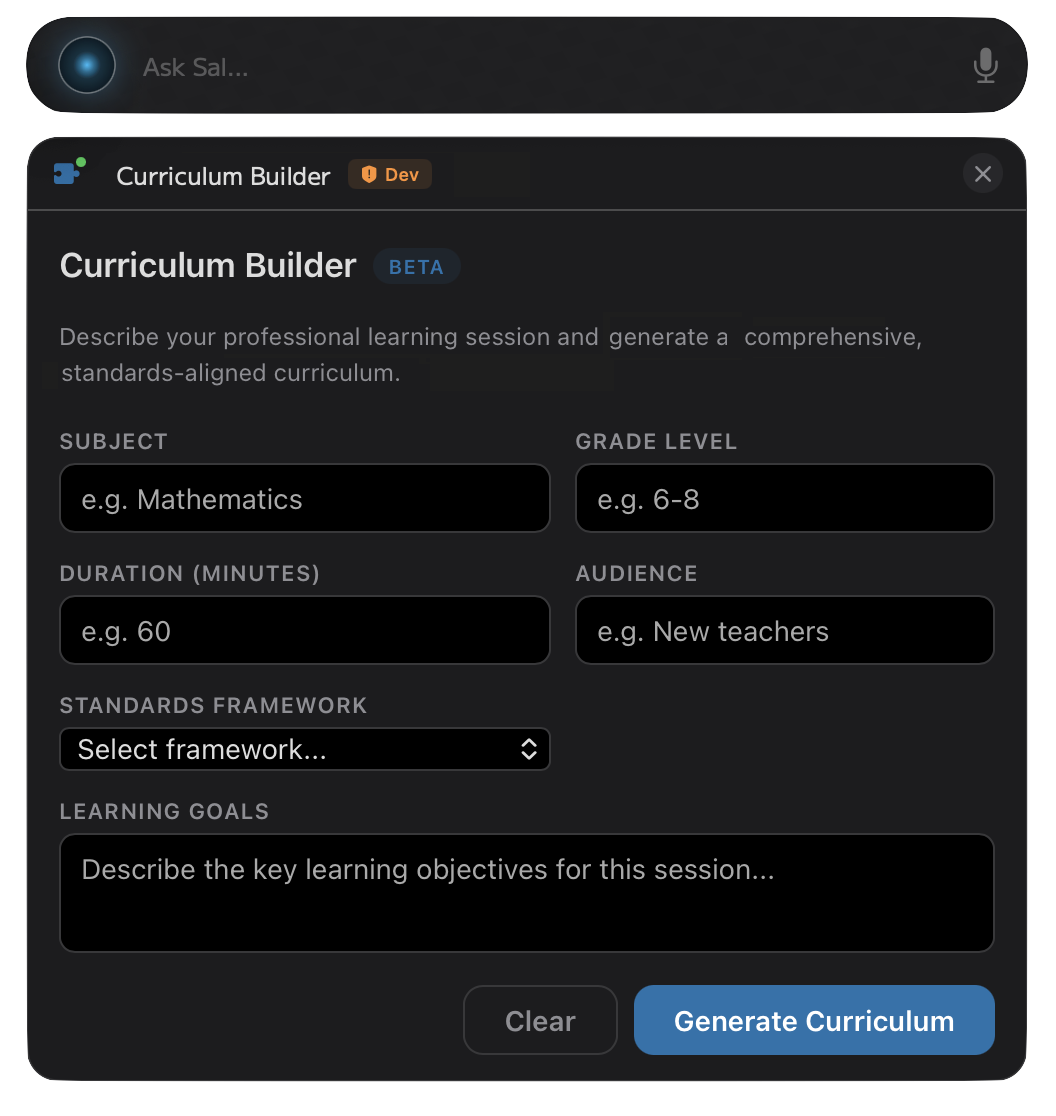
Plugins let developers extend Sal to meet client-specific needs — whether that's a niche industry workflow, a proprietary data source, or a UI that simply doesn't exist yet.
What Could You Build?
Plugins bridge the power of conversational UI and AI reasoning with the capabilities of a full application. The user talks to Sal naturally, Sal reasons about what they need, and your plugin provides the rich interface to get it done — with Sal actively guiding them the entire time. Here are some ideas:
- Invoice Generator — The user says "I need to invoice Acme Corp for the Q2 consulting work." Sal asks clarifying questions — hourly or fixed rate? which project? — then opens your plugin with the fields pre-filled from the conversation. The user reviews the line items in a structured form while Sal suggests tax rates and payment terms. The plugin generates a PDF and hands it back to Sal to email.
- CRM Dashboard — "How's the Johnson deal looking?" Sal pulls context from the user's pinned CRM data, opens your plugin to render a rich deal card with pipeline stage, contact history, and revenue forecast. The user asks "what's the risk?" and Sal analyzes the deal velocity and flags stalled stages — right alongside the visual dashboard.
- Design Mockup Tool — The user describes a landing page layout in plain language. Sal interprets the intent and opens your plugin with an initial canvas. The user drags elements, adjusts colors. They say "make the hero section more prominent" — Sal reasons about the request and updates the layout parameters in your plugin. Conversation and direct manipulation, working together.
- Code Playground — A developer says "write a function to parse CSV files with error handling." Sal generates the code and opens your plugin's sandboxed editor with it loaded. The user runs it, sees an edge case fail, and says "handle quoted commas." Sal refines the code in place. The conversation IS the debugging session.
- Data Explorer — "Show me last quarter's revenue by region." Sal connects to your plugin, which queries a database and renders interactive charts. The user spots an anomaly — "why did EMEA drop in March?" — and Sal uses its inference engine to analyze the underlying data and narrate the insight, right next to the chart.
The pattern is always the same: the user speaks naturally, Sal reasons, your plugin provides the interface, and Sal stays present to assist. No menus to navigate, no workflows to memorize — just a conversation that gets things done.
Why This Matters
Most AI assistants are closed systems. They can talk, but they can't do anything you didn't anticipate. Sal is different. The plugin architecture means that any developer can extend what Sal is capable of — without waiting for us to build it.
Every plugin gets two layers of AI access:
- Sal's Cognitive Reasoning — When your plugin card is open, Sal automatically becomes a domain expert for your tool. It reads your plugin's guidance files, sees the live state of every field, and talks directly to the user — suggesting values, answering questions, and helping them complete the task. If the user has pinned documents or files in context, Sal can draw on that information while guiding them through your plugin.
- Direct Inference Engine — Your plugin can also call Sal's local AI engine directly, with your own system prompt, completely independent of the conversation. Use this to validate input, generate content, transform data, or power any feature that benefits from intelligence. No API keys, no cloud calls, no latency — it runs on the user's Mac.
The entire data flow stays local. Your plugin's UI, Sal's reasoning, and the inference engine all run on the user's Mac — nothing ever leaves the computer. User data is never sent to a cloud service, and no internet connection is required. If your use case calls for it, you're free to connect to external APIs and web services from within your plugin — but that's your choice, not a requirement.
Every plugin is reviewed and cryptographically signed by HelloPartner.ai before distribution, so users always know what they're running.
0% Platform Tax
We succeed when you succeed. We do not charge listing fees, and we take absolutely no revenue split.
Whether you sell your plugin as a one-time purchase, charge a monthly subscription, or offer it as a free extension to your existing SaaS product, you keep 100% of your revenue. Your users simply need a valid Sal license to run it. By letting developers own their relationship with their customers, we ensure Sal remains the most open, developer-friendly ecosystem available.
The Plugin Bundle (.salplugin)
A plugin is a folder ending in .salplugin. At minimum, it needs a manifest, an entry point, and a developer certificate — but it can contain a full web application with any folder structure you want:
com.yourcompany.myplugin.salplugin/
├── sal-plugin.json      # The manifest defining tools and UI
├── sal-developer.json   # Your developer certificate
├── index.html           # Entry point (configurable in manifest)
├── css/
│   └── styles.css
├── js/
│   ├── app.js
│   └── vendor/
│       └── chart.min.js
├── assets/
│   ├── images/
│   └── fonts/
└── salGuidance.md       # Domain expertise for Sal (optional)
Your plugin runs in a native WebKit view with full read access to everything inside the .salplugin folder. Use relative paths from your HTML — ./css/styles.css, ./js/app.js, etc. You can use any web framework (React, Vue, Svelte) as long as the output is pre-built static files. No build step runs at load time.
The Manifest (sal-plugin.json)
This file tells Sal everything it needs to know about your plugin: what it's called, what it looks like, and — most importantly — what tools it provides.
Understanding Tools
A tool is how Sal knows your plugin exists and when to use it. When a user says something to Sal, the AI looks at all available tools — including yours — and decides which one to invoke based on the tool's description and triggerPhrases.
Think of a tool as a contract between Sal and your plugin:
- The description tells the AI what your tool does and when to use it. Write this like you're explaining to a colleague: "Use this when the user wants to create an invoice."
- The parameters define the structured data that Sal gathers from the conversation and passes to your plugin. These become the fields in your UI.
- Trigger phrases are keywords that help Sal's routing engine quickly match user requests to your plugin (e.g.,
"invoice","billing","receipt").
A plugin can define multiple tools. For example, a project management plugin might have create_task, view_board, and generate_report — each opening the same plugin UI in a different mode.
Requirements: Every plugin must define at least 1 tool and no more than 5. Each tool must have a non-empty name and description. Sal will reject any plugin that doesn't meet these requirements.
Example Manifest
{
  "id": "com.yourcompany.invoicer",
  "version": "1.0.0",
  "displayName": "Invoice Builder",
  "description": "Create and manage professional invoices.",

  "ui": {
    "entryPoint": "index.html",
    "panelHeight": 500 // Note: Docked mode enforces a hard max of 450pt
  },

  "tools": [
    {
      "name": "create_invoice",
      "displayName": "Create Invoice",
      "description": "Use this when the user wants to create, generate, or draft an invoice for a client.",
      "triggerPhrases": ["invoice", "billing", "bill", "receipt"],
      "salGuidance": "salGuidance.md",
      "parameters": {
        "type": "object",
        "properties": {
          "client_name": {
            "type": "string",
            "description": "The client or company to invoice."
          },
          "project": {
            "type": "string",
            "description": "The project or work being invoiced."
          },
          "amount": {
            "type": "string",
            "description": "The invoice amount."
          }
        },
        "required": ["client_name"]
      }
    }
  ]
}
The Guidance File (salGuidance.md)
This is your plugin's secret weapon. The salGuidance field points to a markdown file inside your bundle that turns Sal into a domain expert for your tool.
When your plugin card is open, Sal reads this file and uses it to guide the user through your tool's fields — suggesting values, explaining options, and asking the right questions. This is how you shape Sal's behavior without writing any AI code.
For example, an invoice plugin's salGuidance.md might say:
You are helping the user create a professional invoice.

When suggesting amounts, ask about hourly vs. fixed rate.
Always confirm the billing period before generating.
If the user mentions a project name, check if they have
a preferred payment terms (Net 15, Net 30, etc.).
Suggest common tax rates based on the client's location.
The more specific your guidance, the more helpful Sal becomes. Think of it as onboarding instructions for an AI assistant who will help every user of your plugin.
The User Interface (index.html)
Your UI is loaded in a secure WebKit view. You can use standard HTML, CSS, Javascript, and any modern web framework.
Responsive UI & Pop-Out Architecture
Plugins operate in two distinct modes: Docked Mode (inline within Sal's chat) and Expanded Mode (a floating, user-resizable window that can fill the desktop). In Docked Mode, users can configure Sal's panel width to Narrow, Medium, or Wide. The Narrow setting enforces a minimum width of approximately 360pt. You must design your adaptive layout to support this minimum width without breaking.
When a user clicks the pop-out button, Sal natively reparents the exact same WebView instance. All Javascript state, form values, and bridge connections are perfectly preserved. You must use standard CSS media queries to adapt your layout (e.g., stacking columns in docked mode, expanding grids in pop-out mode).
Note on Height: You must declare your required height via panelHeight in your manifest. In Docked Mode, Sal enforces a hard maximum of 450pt to prevent plugins from monopolizing the chat interface. If your UI requires more space, ensure your <body> has overflow-y: auto so it can scroll internally.
Receiving Data from Sal
When the AI decides to invoke your tool, Sal opens your plugin card and dispatches a Javascript CustomEvent. Your UI should listen for this event to populate its fields with the data Sal extracted from the conversation.
// Listen for tool invocations from Sal
window.addEventListener('sal-tool-invoke', (event) => {
  const { toolName, args } = event.detail;

  if (toolName === 'create_invoice') {
    // Populate your UI with the data Sal gathered
    document.getElementById('client').value = args.client_name || '';
    document.getElementById('amount').value = args.amount || '';
  }
});
If the user continues talking to Sal while the card is open, Sal may dispatch a sal-field-update event with new arguments. Your UI should listen for this to update fields in real time.
The Sal Bridge (window.SalBridge)
Sal automatically injects a Javascript bridge into your plugin. This is how your UI communicates back to the native app.
1. The Active Handshake (Crucial)
Sal does not assume your plugin is ready just because the HTML loaded. You must perform an active handshake by calling ready() once your DOM is mounted and listeners are attached. This turns the plugin card's LED Solid Green. Without this, your plugin will appear to be permanently booting.
// Signal that the plugin is fully initialized
window.SalBridge.lifecycle.ready();
2. The Native "Busy" Indicator
Sal provides a three-stage native LED status indicator (Invisible = booting, Solid Green = ready, Pulsing Green = working). Sal automatically pulses the LED during LLM inference, but you can manually control it for your own long-running tasks (network requests, heavy DOM updates) to provide a standardized loading state.
// Turn on the pulsing green LED
window.SalBridge.lifecycle.setBusy(true);

// Perform heavy work...
// Turn it off when done
window.SalBridge.lifecycle.setBusy(false);
3. Reporting State (Crucial for AI Context)
As the user interacts with your UI, you must report the current state of your fields back to Sal. Sal uses this state — combined with your salGuidance.md — to understand what the user has done and what they still need to do.
// Call this whenever an input changes
window.SalBridge.lifecycle.fieldStateChanged({
  "client_name": document.getElementById('client').value,
  "amount": document.getElementById('amount').value
});
4. Sending Results to the AI
When the user clicks the final action button in your UI (e.g., "Generate"), you send the result back to Sal. This closes the tool invocation loop and Sal will narrate the result to the user.
// Sends a text result back to the conversation
window.SalBridge.output.sendResult({
  text: "Invoice #1234 generated for Acme Corp ($5,000)."
});
5. Sending Files
If your plugin generates a file (like a PDF or image), you can hand it directly to Sal to be injected into the conversation timeline:
// Send a file artifact to Sal
window.SalBridge.output.sendFile({
  filename: "invoice_1234.pdf",
  contentType: "application/pdf",
  content: base64PdfData // base64 encoded string
});
6. Sending Errors
If validation fails, tell Sal so it can inform the user via a native notification:
window.SalBridge.output.sendError({ message: "Amount must be greater than zero." });Crucial: Do not pass inference cancellation errors to sendError(), as this will trigger unnecessary error notifications. See "Handling Cancellation" below.
Direct Inference & Cancellation
Your plugin can call Sal's local AI engine directly. Plugin inference requests are routed to a high-priority text queue, bypassing background tasks to ensure near-instant time-to-first-token.
// Single prompt → single response
try {
  const result = await window.SalBridge.inference.complete({
    prompt: "Generate 3 learning objectives for a 60-minute algebra lesson.",
    systemPrompt: "You are a curriculum design assistant.",
    maxTokens: 500,
    temperature: 0.7
  });
  console.log(result.text);
} catch (error) {
  if (error.message.includes("blockedDuringToolExecution") || error.code === "blockedDuringToolExecution") {
    // Local inference was blocked because it was called during a Sal tool run
    console.warn("Inference blocked during tool execution. Degrade gracefully.");
    showAnalyzeButton(); // Show a button for the user to trigger it manually
  } else if (error.message.includes("cancelled")) {
    // Sal uses Sovereign Cancellation. If the user stops generation,
    // the promise rejects. Fail gracefully and do not send an error to Sal.
    console.log("Generation was stopped. Click generate to try again.");
    // Reset your UI spinners/buttons here
  }
}
// Multi-turn conversation
const result = await window.SalBridge.inference.chat({
messages: [
{ role: "system", content: "You are a curriculum design assistant." },
{ role: "user", content: "Suggest assessment types for Grade 6 math." }
],
maxTokens: 500
});
console.log(result.text);SalBridge.inference.complete / chat) is completely disabled during Sal's tool execution loop. Calling these methods from within a plugin tool will immediately throw a blockedDuringToolExecution error.
Both SalBridge.inference.complete and SalBridge.inference.chat throw a blockedDuringToolExecution error (Error message: "Local inference is unavailable during Sal tool execution. Plugin tools must not call inference.") if called inside a tool execution loop. Catch this error in your script's try/catch blocks and degrade gracefully by showing the user an "Analyze" button instead of failing.
Inference runs entirely on the user's Mac. No API keys required. Rate-limited per plugin to protect system resources.
Privacy & Network Access
HelloPartner.ai is a local-first, privacy-first company. Our users choose Sal specifically because their data stays on their machine. That trust extends to plugins: any plugin capable of sending user data off the device must be explicitly declared, reviewed by HelloPartner.ai, and consented to by the user. There are no exceptions.
To enforce this, every plugin WebView runs under a strict Content Security Policy (CSP) that blocks all external network access by default. fetch() calls to undeclared hosts, external images, and external scripts are silently blocked at the WebKit engine level before they can execute. Local file references and Sal-provided documents (sal-file://) are always allowed.
Capabilities Declaration
If your plugin needs to communicate with external servers, you must declare a capabilities object in your sal-plugin.json. During the HelloPartner.ai review process, every domain you list will be verified — we will confirm what it is, who operates it, and that it matches your stated justification. Broad or unverifiable domains will not be approved.
{
  "capabilities": {
    "sendsDataOffDevice": true,
    "requiresInternet": true,
    "domains": ["us-central1-premo-lite.cloudfunctions.net"],
    "justification": "User data is sent to our cloud backend to generate session plans."
  },
  "privacyPolicyUrl": "https://yourcompany.com/privacy"
}
The domains array is your CSP whitelist. Exact hostnames only — subdomains are not automatically included, and wildcard domains are not permitted. Only the domains approved during review will be unlocked at runtime.
User Consent Gate & Cloud Badge
When a plugin declares capabilities, Sal shows a native macOS consent alert the first time it is activated. The alert displays your plugin name, the capabilities it is requesting, your justification text, and a link to your privacy policy. The user must explicitly click Allow before the plugin can run. If they click Deny, the plugin is fully blocked for the remainder of the session.
Plugins with sendsDataOffDevice: true display a permanent orange ☁ Cloud badge in the card header. Users can click the badge at any time to see the full list of approved domains the plugin communicates with. This badge cannot be removed or hidden — it is a non-negotiable transparency requirement.
Execution & Security
The Lifecycle: How it Works
- Triggering: The user types something that matches your tool's description, or uses a
/slashcommand. - Card Opens: Sal opens your
index.htmlin a card in the timeline. - User Interaction: The user interacts with your UI (forms, buttons, canvas).
- Completion: The user clicks a primary action button, and your JS calls
window.SalBridge.sendResult(). - Inference: Sal receives the result, closes your UI card, and the AI generates a final response or takes the next step.
Local Inference Rules
SalBridge.inference.complete / chat) MUST NOT be used inside tool handlers registered with Sal. Tool execution and local inference are mutually exclusive.
When developing plugins, you must clearly distinguish between when local inference is allowed and when it is forbidden:
- In tool calls (Forbidden): Any tool called by Sal inside a tool loop is strictly prohibited from invoking local inference. Tools must behave as pure state-mutators or readers (updating local JavaScript state, performing basic network/file I/O) and return immediately so Sal can handle the reasoning.
- Outside tool calls (Allowed): You are free to call the local AI model directly using
SalBridge.inference.completeorchat, but this must be triggered exclusively by conscious user action (such as a click on a button like "Analyze" or "Summarize") in your plugin's WebView.
If your tool handler attempts to invoke local inference during execution, the bridge will immediately block the request and throw a blockedDuringToolExecution error code.
Recommended Pattern: Two-Phase Card Operations
For plugins that perform heavy local AI operations (like batch email processing, document summarization, or database triage), developers must separate operations into two distinct phases:
Phase 1: Fetch (Sal-Safe)
- What it does: Fetches raw data (e.g. lists of emails, file directories) via network or filesystem I/O.
- Inference: None.
- UX: Shows the raw list of items in the WebView immediately.
- Sal Integration: Safe for Sal to trigger. When Sal calls a tool like
list_unread_messages, the handler should run Phase 1 only and return the list.
Phase 2: Analyze (User-Initiated Only)
- What it does: Processes the fetched data using local inference.
- Inference: Yes (via
SalBridge.inference.complete). - UX: Triggered only when the user consciously clicks a button (e.g., "Analyze", "Triage", "Summarize").
- Sal Integration: Sal cannot trigger this. The plugin must remain in a
not_startedorpartialscan state until the user clicks the button.
Voice & Text Partnership Tools
To support voice and text control of plugin states (e.g. "Sal, close this ticket", "Escalate that issue"), plugins should expose thin control tools. Developers must ensure that:
- No Inference: These tools only mutate local JavaScript state.
- Immediate UI Refresh: The UI must update immediately to reflect the change.
- Context Synchronization: The tool handler must call
SalBridge.lifecycle.reportFieldState()before returning, so Sal's context is updated with the modified state.
Example tool schemas to implement in your manifest:
close_issue: Marks an item resolved and updates the queue.send_response: Pre-fills the draft, triggers composer, and cleans up the active ticket.reclassify_issue: Moves items between queues/departments.
Getting Started & Testing
To develop and test plugins inside Sal, you need a development certificate from HelloPartner.ai. This certificate is locked to your machine — it cannot be shared or used on any other Mac.
- Find your Hardware UUID: Open Apple menu → About This Mac → More Info → System Report → Hardware. Copy the Hardware UUID value.
- Apply for developer access: Email hello@hellopartner.ai with your company name, a description of your plugin idea, your desired plugin ID (e.g.,
com.yourcompany.myplugin), and your Hardware UUID. - Receive your dev certificate: Once approved, we'll send you a signed
sal-developer.jsonfile. Place it inside your.salpluginfolder. - Test inside Sal: Drop your
.salpluginfolder into~/Library/Application Support/Sal/Plugins/and launch Sal. Your plugin will load with an orange ⚠️ Dev badge. You can freely change your HTML, CSS, and JS — the certificate validates your identity and plugin ID, not the content.
Note: Development certificates are locked to your machine's Hardware UUID. They cannot be used on any other Mac. Sal will silently ignore any plugin without a valid certificate.
Distribution
When your plugin is ready for end users, you'll need a public certificate — one that works on any machine.
- Zip your completed
.salpluginfolder and email it to your HelloPartner.ai representative. - We'll review the plugin for performance, UI/UX consistency, and security.
- Once approved, we'll send you a new
sal-developer.json— a public certificate with no machine restriction. - Replace the dev certificate in your bundle with the public one.
Distribution is simple: End users place the signed .salplugin folder into:
~/Library/Application Support/Sal/Plugins/
Your plugin will display a green ✓ Verified badge, confirming it has been reviewed and approved by HelloPartner.ai.
Custom Installers
We encourage developers to build their own plugin installers rather than asking users to manually copy folders. A simple macOS installer, DMG, or shell script that places the .salplugin bundle in the correct directory makes for a far more polished experience. Your users shouldn't need to think about file paths — they should just click install.