Sal for iPhone & iPhone Duo.
Your autonomous, private AI partner built natively for Apple Silicon iPhones. Runs completely on your device with zero remote servers, zero token fees, no subscriptions, and complete confidentiality for your work.
1. Supported Devices & Hardware Requirements
Because Sal performs all reasoning locally on your device with zero cloud servers, it requires an iPhone with sufficient unified memory to run advanced language and vision models safely and smoothly.
| Platform Specification | Requirement & Compatible Models |
|---|---|
| Operating System | iOS 27.0 or newer (compatible with iOS 26.0+) |
| Supported Devices (12 GB RAM Minimum) |
• iPhone Duo (Dual-Screen · 12 GB RAM) • iPhone Air (12 GB RAM) • iPhone 17 Pro & 17 Pro Max (12 GB RAM) • iPhone 18 Series & Newer (12 GB+ RAM) • Apple Silicon iPads (iPad Pro and iPad Air with M-Series chip) |
| Available Storage | ~3.5 GB free space for initial model setup and working cache |
Sal hosts a dedicated 4-billion parameter language and vision model directly in your iPhone's hardware memory. Devices with 8 GB or less of memory (such as iPhone 16 series, iPhone 15 Pro, and base iPhone 17) lack the memory necessary to run this model safely. When launched on an unsupported device, Sal will notify you and switch to Read-Only Synced View, so you can still follow your conversations and files from your Mac while on the go.
2. First Launch & One-Time Setup
Sal requires no accounts, passwords, or cloud sign-in. When you open Sal for the first time, she prepares the local intelligence model directly on your phone.
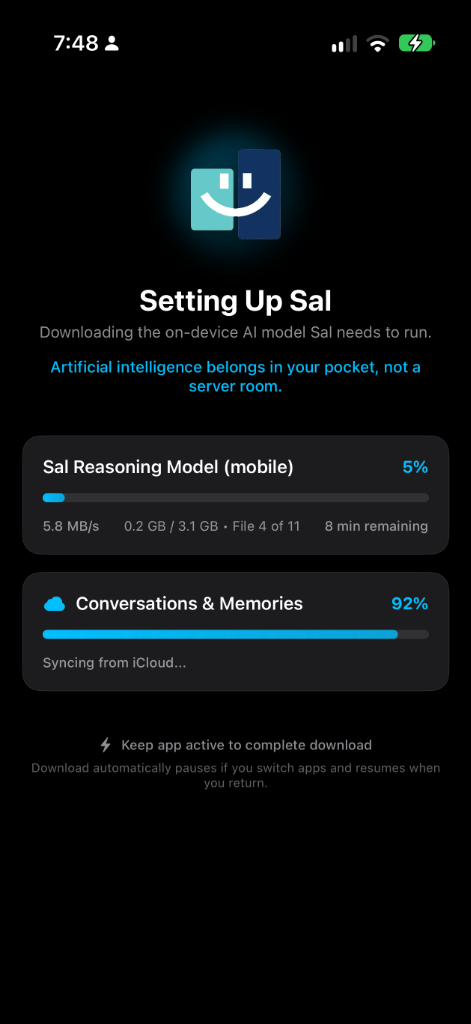
Setup Screen: Sal prepares your on-device intelligence and securely connects to your private iCloud memories.
Streamlined First-Run Setup
- Intelligence Download: Downloads the on-device model files (~3.1 GB). A fluid progress indicator displays current speed and completion. Once downloaded, it never needs to download again.
- Permissions: Prompts for optional access to Microphone (hands-free dictation), Speech Recognition (live transcripts), and Notifications (silent background iCloud updates).
- Working Folders: Select a working directory in the Files app where Sal can review, create, or export documents.
- Private iCloud Sync: Automatically links with your private Apple iCloud to carry active conversations and notes from your Mac.
- Share Sheet Activation: Sal is hidden from system Share Sheets on a fresh install. To enable it once, open the Share Sheet in any app (Safari, Voice Memos, Notes, Photos, or Files), scroll all the way to the right of the app icons row and tap More, then tap Edit in the top corner, find Sal in the list and flip the toggle to On, and tap Done. From that point forward, Sal appears in the Share sheet of every app on your phone.
3. iPhone Duo: Foldable Dual-Screen Experience
Sal is built natively from the ground up to harness the two displays of the iPhone Duo, unlocking desktop-class side-by-side productivity in a pocketable foldable form factor.
Desktop-Class Workstation in Your Pocket
When unfolded, Sal transforms into a dual-screen productivity environment. Work with documents, data tables, and attachments on one display while chatting, drafting, and reviewing insights with Sal on the other.
When unfolded, Sal cleanly divides into an exact 50% left pane for conversation and a 50% right pane for the Duo Inspector. Text and interactive elements never awkwardly straddle or distort across the physical center hinge.
All interactive buttons, input fields, and action controls reside strictly along the outer display edges. Your left and right thumbs reach controls naturally without having to reach into the center crease.
Harnesses iOS 27 vertical system bar docking to tuck navigation and action items into the vertical outer margin beneath status indicators, maximizing your vertical reading room.
Keep long contracts, PDFs, code files, or data tables open on the right screen while asking Sal questions or drafting synthesis on the left screen without losing your place.
Folded vs. Unfolded Continuity
- Folded Mode (Single Screen): Operates as a fast, focused mobile chat assistant with an attachment staging tray and collapsible message threads.
- Unfolded Mode (Dual Screen): Instantly expands into the two-pane workspace. Your active document remains pinned in the right-hand Duo Inspector while the conversation continues seamlessly on the left.
Inline Document Commenting
Markdown documents (.md) support inline commenting directly within Sal's document viewer. PDFs, code files, and images can be previewed and discussed in chat but do not have inline comment bubbles.
On iPhone Duo:
- Every Markdown block (heading, paragraph, quote, table, code fence) displays a comment bubble icon in the right margin.
- Tap a bubble to open a floating card showing the quoted excerpt, a text box for your comment, and Save / Cancel buttons.
- This works whether the phone is folded or unfolded. Folding or unfolding preserves any draft comments you've started.
- Draft comments are local until you press Send. A capsule banner appears above the input bar once you have at least one comment ready, and pressing Send attaches all pending comments to your message.
On standard iPhones (Air, 17 Pro, 17 Pro Max):
- Markdown files open in a read-only preview sheet. There are no inline comment bubbles for authoring new comments.
- You can still attach a Markdown file to a message and ask Sal in regular chat to edit specific passages.
- Comments you authored on Mac or Duo sync to your iPhone via iCloud. Tapping the "N Comments on <Document>" chip in the chat timeline opens a sheet showing all quoted passages and comments.
4. The Modern Attachments Subsystem
In Sal for iOS, legacy persistent "pins" have been replaced by the modern Attachments Subsystem. Files, photos, and voice notes are attached directly to conversational turns, processed in context, and stored permanently alongside your conversation history.
How to Attach Files
Tap the Paperclip (+) button next to the input capsule to access three ingestion paths:
- Browse Files: Select PDFs, Word documents, Excel spreadsheets, Apple Pages files, code files, or plain text from your device or iCloud Drive.
- Take Photo: Open the built-in camera to snap photos of whiteboards, paper documents, or real-world objects for instant visual analysis.
- Photo Library: Pick screenshots, diagrams, or images from your Camera Roll.
The Attachment Staging Tray
When you select items, they appear in an interactive staging tray directly above your text input:
- Shows preview pills with file icons, filenames, and page counts.
- Tap any pill to preview the file, or tap ✕ to remove it before sending.
- Tapping send dispatches your prompt along with the staged files, permanently binding them to that conversation turn.
Supported File Formats
- Documents: PDF (
.pdf), Word (.docx), Apple Pages (.pages), Markdown (.md), Plain Text (.txt), Rich Text (.rtf). - Spreadsheets: Excel (
.xlsx), CSV (.csv). - Source Code: Swift, Python, JavaScript, TypeScript, HTML, CSS, JSON, YAML, Shell, and more.
- Images: PNG, JPEG, HEIC, WebP. Formatted automatically for local vision analysis.
- Audio: Apple Voice Memos (
.m4a,.qta), MP3, AAC, WAV.
6. Autonomous On-Device Tools
Sal is an active, agentic assistant. Rather than just returning conversational text, Sal autonomously takes actions directly on your iPhone to solve complex problems:
- Search the Web: Retrieves real-time information, news, and technical references from the live web.
- Read Web Pages: Fetches articles and documentation and converts them into clean, readable text.
- Read Local Files: Opens documents in your workspace — PDFs, Word, Excel, Pages — and extracts their content.
- Create Files: Writes new Markdown documents, code files, or exported reports directly to your working folder.
- Append to Documents: Adds meeting notes, action items, or research findings to an existing document without overwriting earlier work.
- Analyze Data: Calculates mathematical and statistical summaries for tabular data, CSVs, and spreadsheets.
- Draft Emails: Composes a full email with recipient, subject, and body, then opens it in Apple Mail for your review before sending.
- Remember & Recall: Stores key discussion points and project context across sessions, and retrieves them when relevant.
Transparent Tool Execution
Whenever Sal takes an action, a visual capsule appears in the chat stream showing what she's doing (such as searching the web or reading a file). You can tap the disclosure arrow to inspect the result.
7. Incognito Mode ("Off the Record")
When you need to ask sensitive financial questions, draft confidential medical queries, or explore temporary scratchpad ideas, Sal includes a built-in, zero-trace Incognito Mode ("Off the Record").
Ephemeral Inquiries with Absolute Privacy
Unlike cloud AI services that store "temporary chats" on remote corporate servers for days or weeks, Sal executes Incognito Mode entirely on your iPhone hardware, guaranteeing that off-the-record queries leave zero lasting traces on your device, in memory, or across devices.
How to Use Incognito Mode
- Press & Hold the Send Button: Type your prompt and stage any attachments as usual. Instead of tapping Send, press and hold the circular send button for a fraction of a second.
- Tactile Confirmation: You will feel a subtle haptic tap as a floating action menu appears:
- Send incognito: Dispatches the prompt as an ephemeral, zero-trace turn.
- Cancel: Closes the menu and returns to standard conversation.
- Visual Badge in Chat: Your message is marked with a distinctive blue "Off the Record" padlock capsule badge, giving you instant visual confirmation that privacy containment is active.
8. Native iOS Settings & Personalization
Rather than cluttering your conversation with nested in-app menus, Sal follows native iOS platform conventions by providing a centralized preference panel directly inside Apple's native Settings app (Settings → Sal).
Customize Your Name so Sal addresses you naturally in conversations, and configure the Assistant Name (defaults to "Sal"). Both synchronize seamlessly with your Mac via your private Apple iCloud.
Choose from 8 accent themes that match Sal for Mac, tinting the header diode, active status lighting, and the glowing core in thinking mode:
Choose between System Default, Light ("Day"), or Dark ("Night"). Maintained as a local per-device setting so you can enjoy True Black on your OLED iPhone while keeping your Mac in light mode.
Select from 5 font sizes. On iPhone Duo, Sal automatically recalibrates text scale between single-screen mode and the 50/50 unfolded dual-pane split to prevent premature line wrapping.
Enable or disable inline verification receipts below assistant responses. Syncs bidirectionally between your iPhone and Mac.
Review real-time hardware telemetry inside Settings, including installed unified RAM, available memory, context capacity (16,384 tokens), thermal state, and tokens-per-second generation speeds.
Bidirectional iCloud Settings Sync
Your core preferences stay in harmony across your devices. Change Sal's accent color, assistant name, or verification preferences on your Mac, and your iPhone updates automatically in seconds without interruption.
9. Verification Badges & Absolute Privacy
Real-Time Fact-Checking Badges
Sal includes an on-device referee that inspects generated statements in real-time, displaying verification badges on every response:
Tap to Inspect: Tap any badge on your phone to open the Verification Receipt detailing matched facts and cited documents. You can configure verification badges in iOS Settings → Sal.
Continuous Sync with Sal for Mac
Sal uses your private Apple iCloud account for synchronization. Sessions, project milestones, and attachments shared on your Mac appear automatically on your iPhone without ever passing through a third-party server.
Sal runs in Read-Only Synced View. You won't download the local model, and your iPhone won't generate new responses on-device. But everything else syncs normally: your active conversation, memories, attachments, and any updates from your Mac appear live on your phone. Use it as a convenient second screen for reviewing your work while you're away from your desk.
10. Recommended Workflows to Try
Here are five practical workflows to test Sal's capabilities on your iPhone and iPhone Duo:
Dual-Screen Review on iPhone Duo
Experience desktop-class side-by-side productivity on foldable hardware.
- Unfold your iPhone Duo to activate the 50/50 dual-pane workstation.
- Tap the
+button and attach a PDF document or spreadsheet. - Review the document in the right-hand Duo Inspector while asking Sal questions on the left screen.
- Notice how both screens remain fully interactive without content cutting across the center hinge.
Send an Incognito Query
Verify zero-trace confidential execution.
- Type a private question into the input field (e.g., about personal finances or health).
- Press and hold the circular Send button for a moment until you feel a haptic pulse.
- Tap Send incognito in the floating action menu.
- Notice the blue Off the Record padlock badge above the response confirming complete privacy containment.
Instant Voice Memo Debrief
Extract instant action items from a recorded meeting or voice memo.
- Record a brief audio thought in Apple Voice Memos.
- Tap the Share icon and select Sal.
- Ask Sal: "Summarize this recording and pull out the 3 main action items."
- Observe how the transcript appears instantly with timestamp markers.
Mac ↔ iPhone Memory Sync
Experience how your assistant carries context between your desktop and mobile devices.
- Discuss a project plan with Sal on your Mac.
- Later, open Sal on your iPhone or iPhone Duo while on the go.
- Ask: "What did we decide earlier on my Mac regarding [Project Name]?"
- Notice how Sal recalls your discussion via private iCloud sync.
Customize in iOS Settings
Experience instant real-time preference updates.
- Open the Apple Settings app on your iPhone and scroll to Sal.
- Change the assistant color theme (for example, to Teal or Purple) and set your preferred Assistant Name.
- Switch back to Sal and observe the instant live update to the status diode and header without an app relaunch.
11. Support & Feedback Policy
100% Free App Policy: Sal for iOS and iPhone Duo is provided completely free of charge with no in-app purchases, token fees, or subscriptions. Because it is a free companion app, direct one-on-one technical support is reserved exclusively for active paid subscribers of Sal for Mac.
To exchange tips, workflows, and ideas with fellow users:
- Community Discord: Join our community Discord to exchange workflows, tips, and feature ideas.
- Product Updates: Visit hellopartner.ai for software updates, tutorials, and App Store availability.